
How to Back Up Chrome Bookmarks (and Why You Should Today)
Chrome has no undo for bulk bookmark deletes. Here's how to back up your Chrome bookmarks to a file you own — the built-in way, plus how to back up just the folders you care about.
Here's the uncomfortable truth: Chrome has no recycle bin for bookmarks. Delete a folder by accident, run a messy cleanup, or have a sync hiccup, and years of saved links can vanish with no undo. The fix takes seconds — back up your Chrome bookmarks to a file you own. This guide shows you how. (Already lost some? The recovery guide covers what still works, and the Bookmarks.bak comparison tool finds what the backup file still holds.)
The fastest way to back up Chrome bookmarks (built-in)
Chrome's full export is a backup. To back up your Chrome bookmarks natively:
- Open the Bookmark Manager — type
chrome://bookmarks, or go to ⋮ → Bookmarks and lists → Bookmark manager. - Click the ⋮ (three dots) in the top-right.
- Choose Export bookmarks.
- Save the
.htmlfile somewhere safe (and ideally a second copy in cloud storage or a drive).
That single HTML file is a complete snapshot of your bookmarks. To restore it later, just import it back into Chrome.
Why not rely on Chrome Sync? Sync keeps your bookmarks the same across devices — which means a deletion syncs everywhere too. Sync is convenience, not a backup. A separate exported file is the thing that saves you.
Back up only the folders that matter
Sometimes you don't want a full snapshot — just a safety copy of one important folder before you reorganize it. With Bookmark Maestro you can export a backup of exactly what you choose (a Pro feature):
- Open Bookmark Maestro.
- Browse to the folder — or hand-pick individual bookmarks — you want to protect.
- Export your selection to a standard HTML file (favicons included).
One thing to know if you are signed in to Chrome without sync: you then have two bookmark trees, and two Bookmarks Bars. The bookmarks HTML format has room for exactly one toolbar folder, so the first bar goes out as the toolbar every browser recognises and the second goes out as an ordinary folder under its own labelled name. Nothing is dropped — one of the two simply arrives as a normal folder on the way back in.
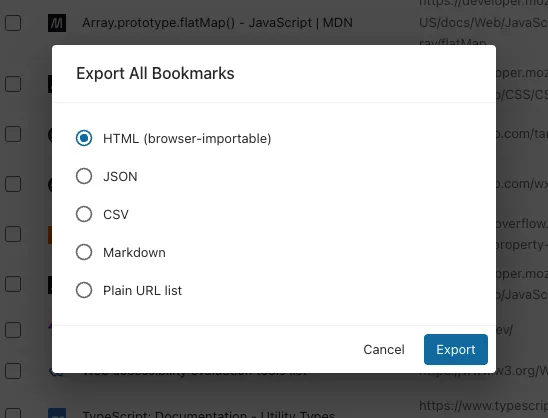
For the full how-to on choosing scope, see exporting Chrome bookmarks with granular control. Everything is processed locally — your bookmarks never leave your device.
Always back up before a cleanup
This is the golden rule, and it survives having a recycle bin. Before you remove duplicates, clear out dead links, or delete empty folders, export a backup first. History covers the deletions made in this browser, for 30 days, and gives them back as new bookmarks dated today. An exported file covers everything else — the profile you lose, the machine you replace, the dates you want kept exactly as they were.
How often should you back up?
- Before any big reorganization or cleanup — every time.
- On a routine — monthly is plenty for most people; weekly if you save links constantly.
- Before switching computers or browsers — so you can import a clean copy on the other side.
Final thoughts
Backing up your Chrome bookmarks costs seconds and saves years of collected links. Do a full export today, then keep a copy of anything important before you clean house. Bookmark Maestro backs up exactly the bookmarks you care about — all locally, nothing uploaded.
FAQs
Q: Where does Chrome save the bookmarks backup file?
A: Wherever you choose in the save dialog when you click "Export bookmarks." It's a standard .html file you can move or copy anywhere.
Q: How do I restore a Chrome bookmarks backup? A: Import the HTML file back into Chrome. See how to import bookmarks into Chrome.
Q: Is my backup uploaded to a server? A: No. Bookmark Maestro processes your bookmarks locally; only your account/subscription status ever touches a server. Your backup file stays on your device unless you move it yourself.
Q: Does Chrome Sync count as a backup? A: No. Sync mirrors changes — including deletions — across your devices. A separate exported file is what actually protects you from accidental loss.