
How to Import Bookmarks into Chrome (Without the Mess)
A step-by-step guide to importing bookmarks into Chrome — the built-in way, plus how to import an HTML file into the exact folder you choose without scrambling your existing bookmarks.
Switching computers, moving from another browser, or restoring a backup? You'll need to import bookmarks into Chrome. Chrome's built-in importer gets the job done, but it has one annoying habit — it dumps everything into a new "Imported" folder. This guide shows you the native way to import, plus how to import a bookmarks file into the exact folder you want, with the original structure intact.
How to import bookmarks into Chrome (built-in)
Chrome can import a standard bookmarks HTML file out of the box:
- Open the Bookmark Manager — type
chrome://bookmarks, or go to ⋮ → Bookmarks and lists → Bookmark manager. - Click the ⋮ (three dots) in the top-right.
- Choose Import bookmarks.
- Select your
.htmlfile and confirm.
Chrome will add the bookmarks under a new folder (usually named "Imported"). That's fine for a one-off restore, but if you're merging bookmarks into an already-organized library, you'll have some cleanup to do afterward.
The catch: you don't control where they land
Chrome's importer always creates its own folder and ignores where things should go. If you maintain a tidy folder structure, a native import drops a messy pile right in the middle of it.
How to import into a specific folder (with structure preserved)
Bookmark Maestro gives you control over the import destination (this is a Pro feature):
- Open Bookmark Maestro.
- Choose Import and select your bookmarks HTML file.
- Pick where it lands — Bookmarks Bar, or This folder, meaning the one you're standing in.
- The original folder structure inside the file is preserved as it comes in.
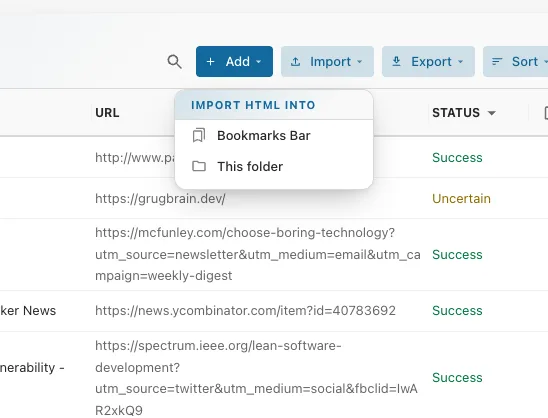
Everything runs locally — your bookmarks are processed on your device and never uploaded.
Before you import: back up what you already have
Importing merges new bookmarks into your library, and Chrome has no undo for bulk changes — an import done through Chrome's own manager is yours to unpick by hand. An import done in Bookmark Maestro is one Undo: the receipt says how many bookmarks and folders arrived and offers to take them straight back out, and the same Undo is still on the History page days later. Even so, take ten seconds to back up your current Chrome bookmarks first — a file you own is the only copy that survives losing the profile.
Moving between browsers or computers?
The flow is always the same two steps: export on the old setup, import on the new one. If you only want to bring over part of your library, see how to export Chrome bookmarks with granular control so you import a clean set instead of everything.
Final thoughts
Chrome's native import is perfect for a simple restore. But when you're merging into an organized library and care where things land, importing into a chosen folder — with structure preserved — keeps your bookmark bar tidy. Bookmark Maestro imports on your terms.
FAQs
Q: What file format does Chrome import? A: A standard bookmarks HTML file — the same format Chrome, Edge, and Firefox all export.
Q: Can I import bookmarks from Edge or Firefox into Chrome? A: Yes. Export an HTML file from the other browser, then import that file into Chrome using either method above.
Q: Will importing create duplicates? A: Importing adds the file's bookmarks to your library, so importing the same set twice can create duplicates. If that happens, Bookmark Maestro's duplicate finder can clean them up in one pass.
Q: Does importing upload my bookmarks anywhere? A: No. Bookmark Maestro processes everything locally on your device — nothing is uploaded.