
How to Export Chrome Bookmarks to CSV, Markdown, or JSON
Chrome only exports bookmarks as HTML. Here's how to export your Chrome bookmarks to CSV, Markdown, or JSON — machine-readable, portable files you can open in a spreadsheet, a notes app, or a script.
Chrome can export your bookmarks — but only as a single HTML file meant for re-importing into a browser. If you want to open your links in a spreadsheet, drop them into a notes app, or feed them to a script, you need a machine-readable format. This guide shows you how to export Chrome bookmarks to CSV, Markdown, or JSON — clean, portable files you actually own.
Why Chrome's built-in export isn't enough
Chrome's native Export bookmarks produces a Netscape-format .html file. It's perfect for moving bookmarks into another browser, but it's awkward for anything else:
- Spreadsheets can't cleanly read a bookmarks HTML file — you want CSV.
- Notes apps and docs (Obsidian, Notion, a README) want Markdown.
- Scripts and automations want structured JSON, not HTML you have to parse.
Chrome offers none of these. There's no CSV option, no Markdown option, and no way to get a plain list of URLs — it's HTML or nothing.
How to export Chrome bookmarks to CSV, Markdown, or JSON
Bookmark Maestro adds the formats Chrome leaves out (this is a Pro feature):
- Open Bookmark Maestro.
- Choose your scope — the whole library, the current folder, or a hand-picked selection of individual bookmarks.
- Click Export and pick a format: HTML, JSON, CSV, Markdown, or a plain URL list.
- Save the file — it downloads straight to your device.
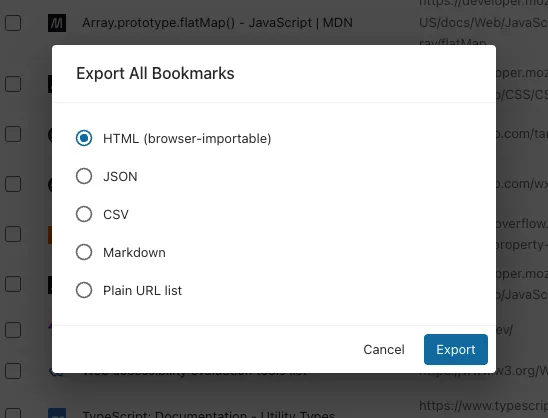
Everything runs locally. Your bookmarks are processed on your device and never uploaded — only your account status ever touches a server.
What each format gives you
- CSV — a spreadsheet-ready table with a column for each bookmark's title, URL, folder path, and date added. Open it in Excel, Google Sheets, or Numbers to sort, filter, and audit your links. This is the format to reach for when someone asks you to export bookmarks to CSV.
- Markdown — a nested bullet list that mirrors your folder structure: folders are bold headings and each bookmark is a
[title](url)link. Paste it straight into Obsidian, Notion, a GitHub README, or any Markdown doc. - JSON — a flat array of objects (
title,url,folder,dateAdded) that any script or tool can read without parsing HTML. Ideal for backups, migrations to other tools, or feeding an automation. - Plain URL list — one URL per line, nothing else. Handy for bulk-opening, deduping, or piping into a command-line tool.
- HTML — the standard Netscape format (favicons included) for importing back into Chrome or another browser.
Common use cases
- Audit your links in a spreadsheet. Export to CSV, then sort by folder to spot duplicates, dead sections, or folders that have grown out of control.
- Turn a research folder into notes. Export one folder to Markdown and drop it into your notes app as a ready-made reading list.
- Back up in a format that lasts. CSV and JSON stay readable in any tool for years — see how to back up your Chrome bookmarks.
- Export just part of your library. Because you choose the scope first, you can export a single folder or a hand-picked set instead of everything — the same granular control covered in the export pillar guide.
Final thoughts
Chrome's HTML-only export is fine for moving bookmarks between browsers, but the moment you want your links in a spreadsheet, a notes app, or a script, you need a real data format. Bookmark Maestro exports your Chrome bookmarks to CSV, Markdown, JSON, or a plain URL list — exactly the scope you choose, all processed locally.
FAQs
Q: Can Chrome export bookmarks to CSV natively? A: No. Chrome's built-in export only produces a bookmarks HTML file. To get a CSV — or Markdown, JSON, or a plain URL list — you need an extension like Bookmark Maestro.
Q: What columns are in the CSV export? A: Each row has the bookmark's title, URL, folder path, and date added, so you can sort and filter your links in any spreadsheet app.
Q: Does the Markdown export keep my folder structure?
A: Yes. Folders become bold headings and nest just like they do in your bookmark tree, with each bookmark rendered as a clickable [title](url) link.
Q: Can I export only certain folders or bookmarks to CSV or Markdown? A: Yes. You pick the scope first — the whole library, one folder, or a hand-picked selection — then choose the format. See exporting Chrome bookmarks with granular control.
Q: Are my bookmarks uploaded anywhere when I export? A: No. Bookmark Maestro processes everything locally on your device; only your account status ever reaches a server. The exported file stays on your machine unless you move it yourself.